For details on how Trunk collects, manages, and stores your data, see our Security and Privacy page.
Installing the Trunk Slack App
Before you can set up channel notifications or personal DMs, a Slack workspace admin must install the Trunk Slack app for your organization. This is a one-time setup that enables all Slack integration features.Steps to Install
- In the Trunk web app, navigate to Settings → Organization → Slack.
- Click Add to Slack.
- Review and approve the requested permissions on the Slack OAuth screen.
- You’ll be redirected back to Trunk. The page will show your workspace as Connected along with the workspace name.
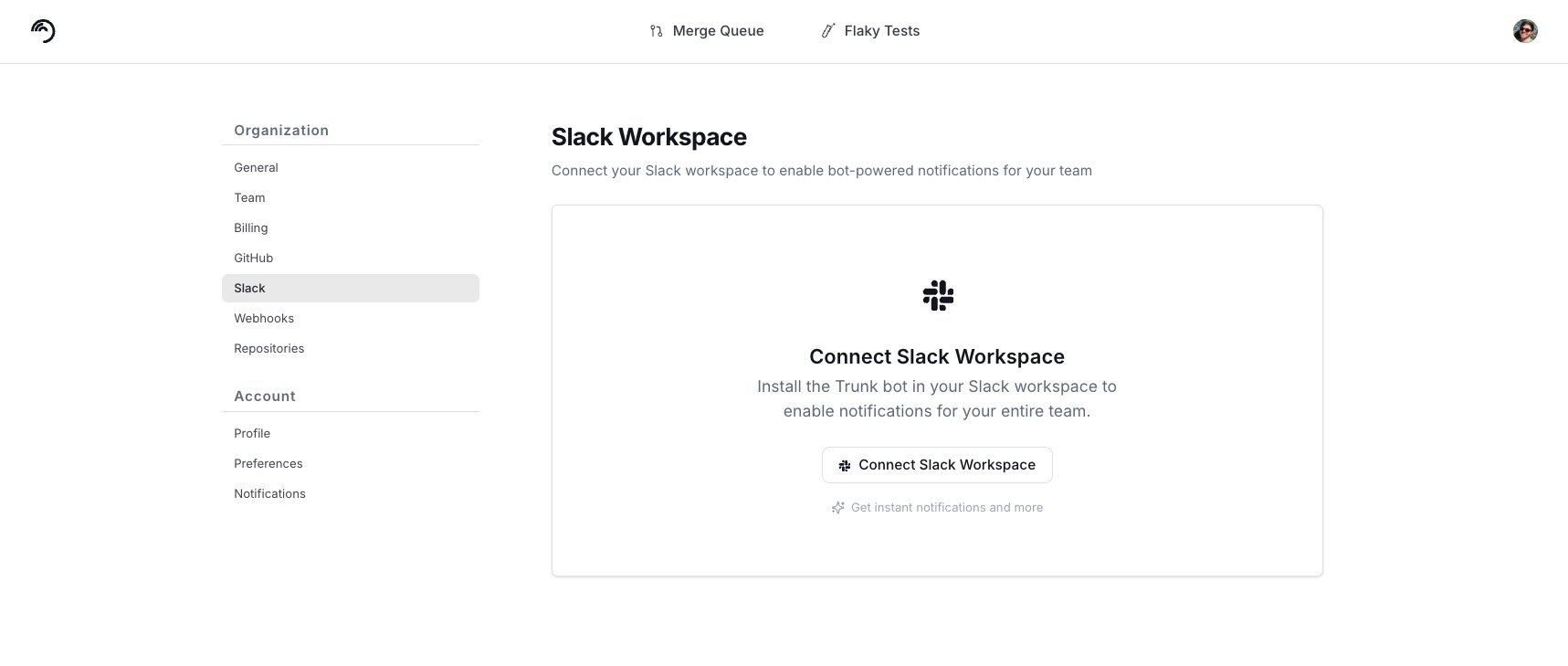
Screen to connect Slack to your workspace
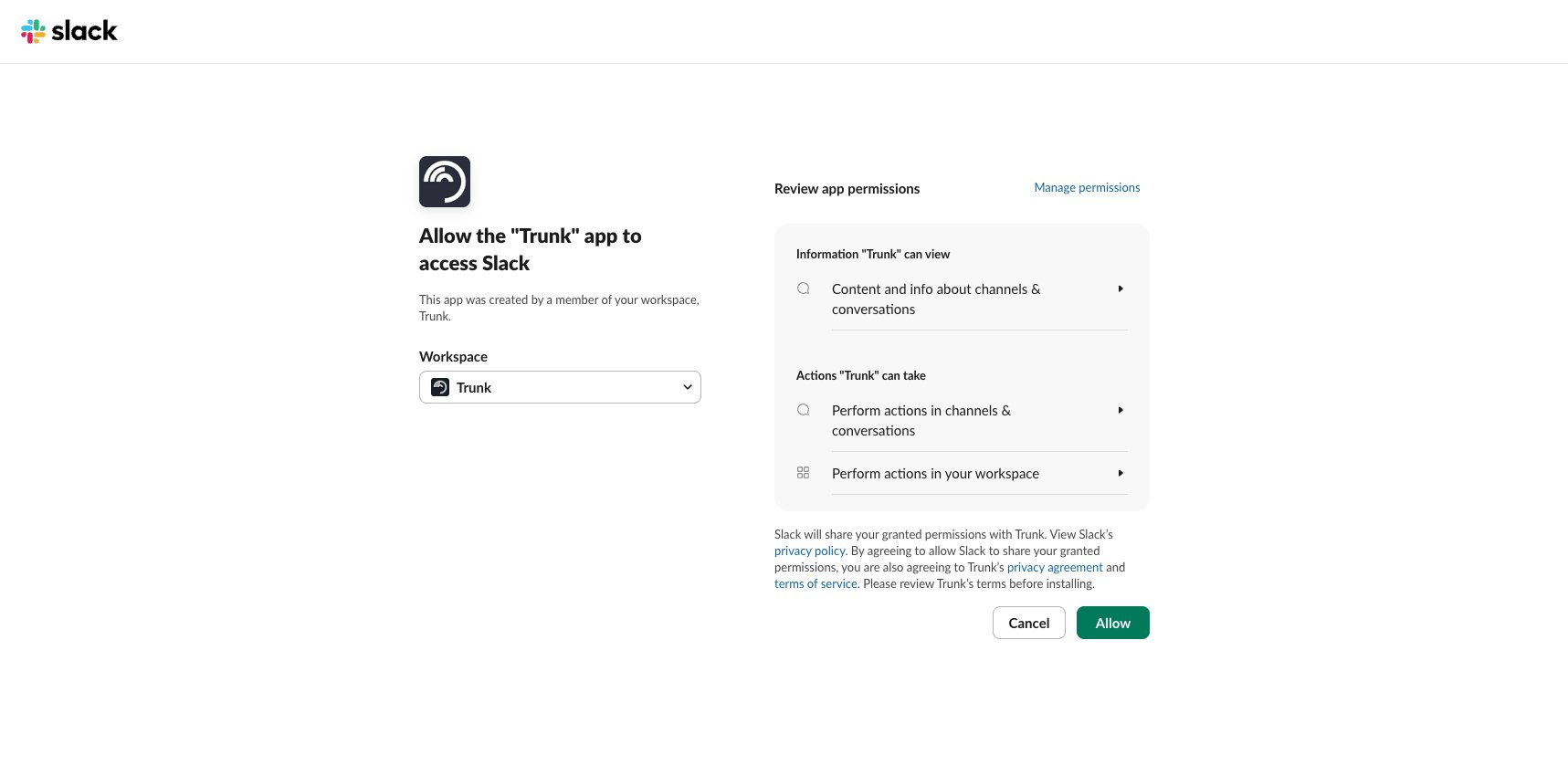
Slack's OAuth authorization screen for the Trunk app
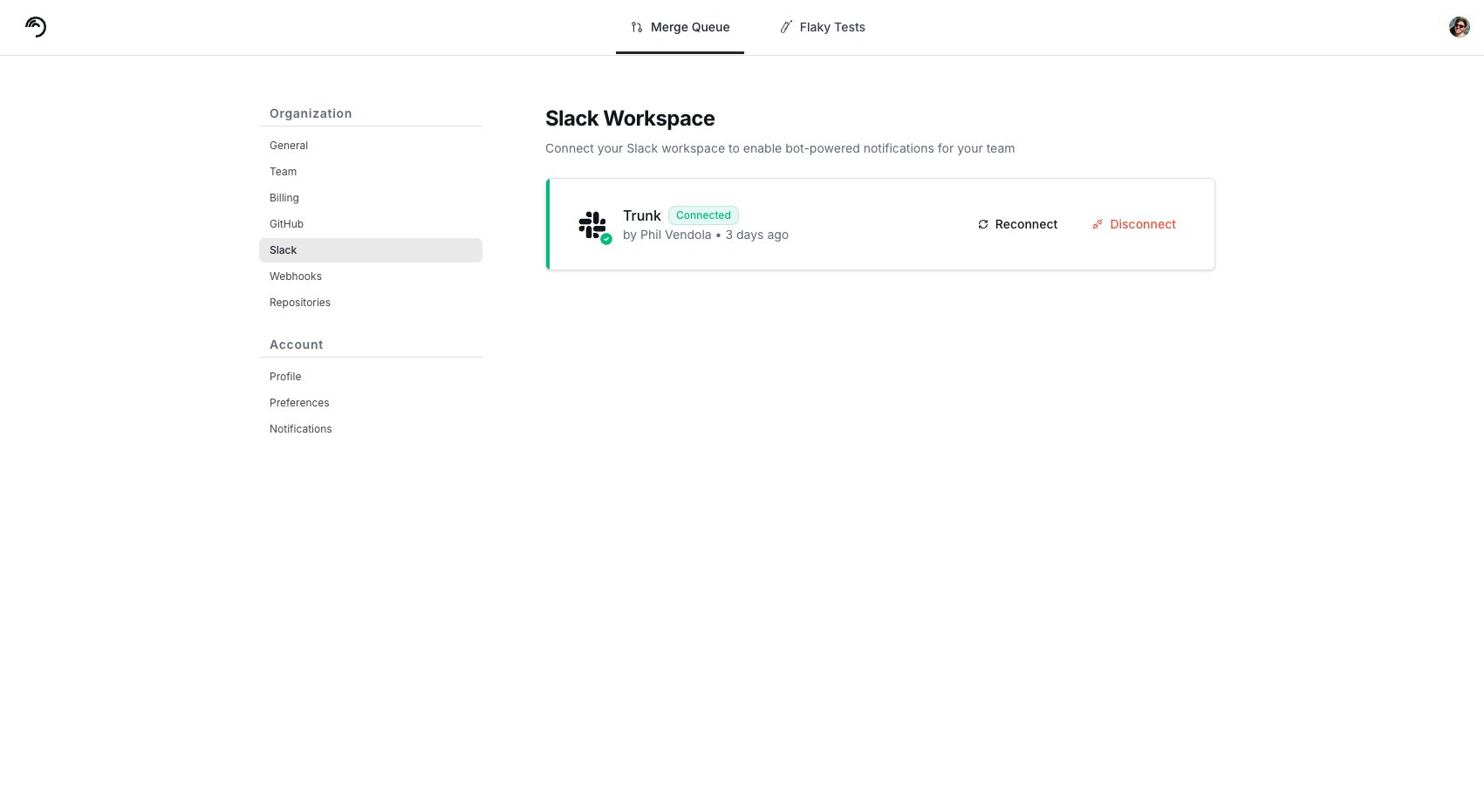
Trunk's UI after the Slack app has been connected
Managing the Connection
Once connected, you can Reconnect (to reauthorize) or Disconnect the workspace from the same settings page.Migrating from legacy Slack integration? If your organization previously connected Slack through the per-repo “Connect with Slack” flow, you still need to complete this new workspace-level installation to access multi-channel notifications and the new personal DM features. After installing, you can set up channel connections and personal notifications using the new workflows described below.
Channel Notifications
Send merge queue updates to one or more shared Slack channels to keep your team informed about queue activity. Each channel can have its own set of enabled notification topics.Connecting Slack Channels
Prerequisite: The Trunk Slack app must be installed for your organization before you can connect channels.
- Navigate to Merge Queue → [your repository] → Settings.
- Under Slack Notifications, click Add Channel.
- In the Add Slack Channel modal, paste your Slack channel link. To get the link: right-click the channel name in Slack and select Copy link. Trunk looks up the channel and displays its name when found.
- Toggle the notification topics you want enabled for that channel.
- Click Connect.
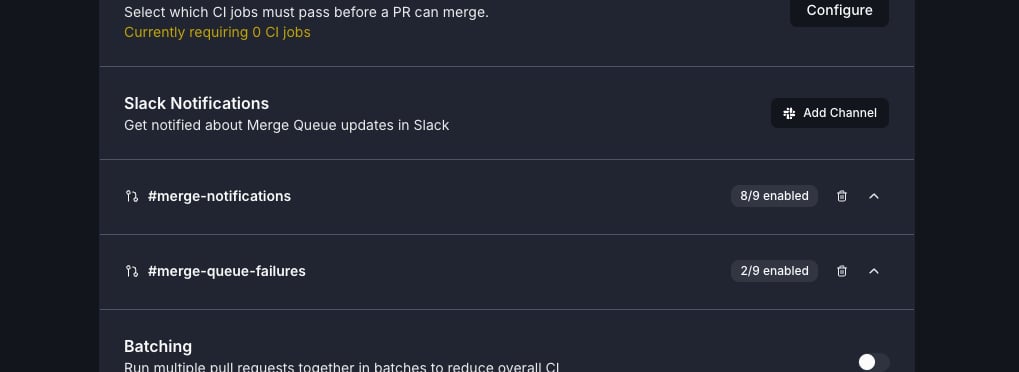
#merge-notifications channel while only sending failure alerts to a #merge-queue-failures channel.
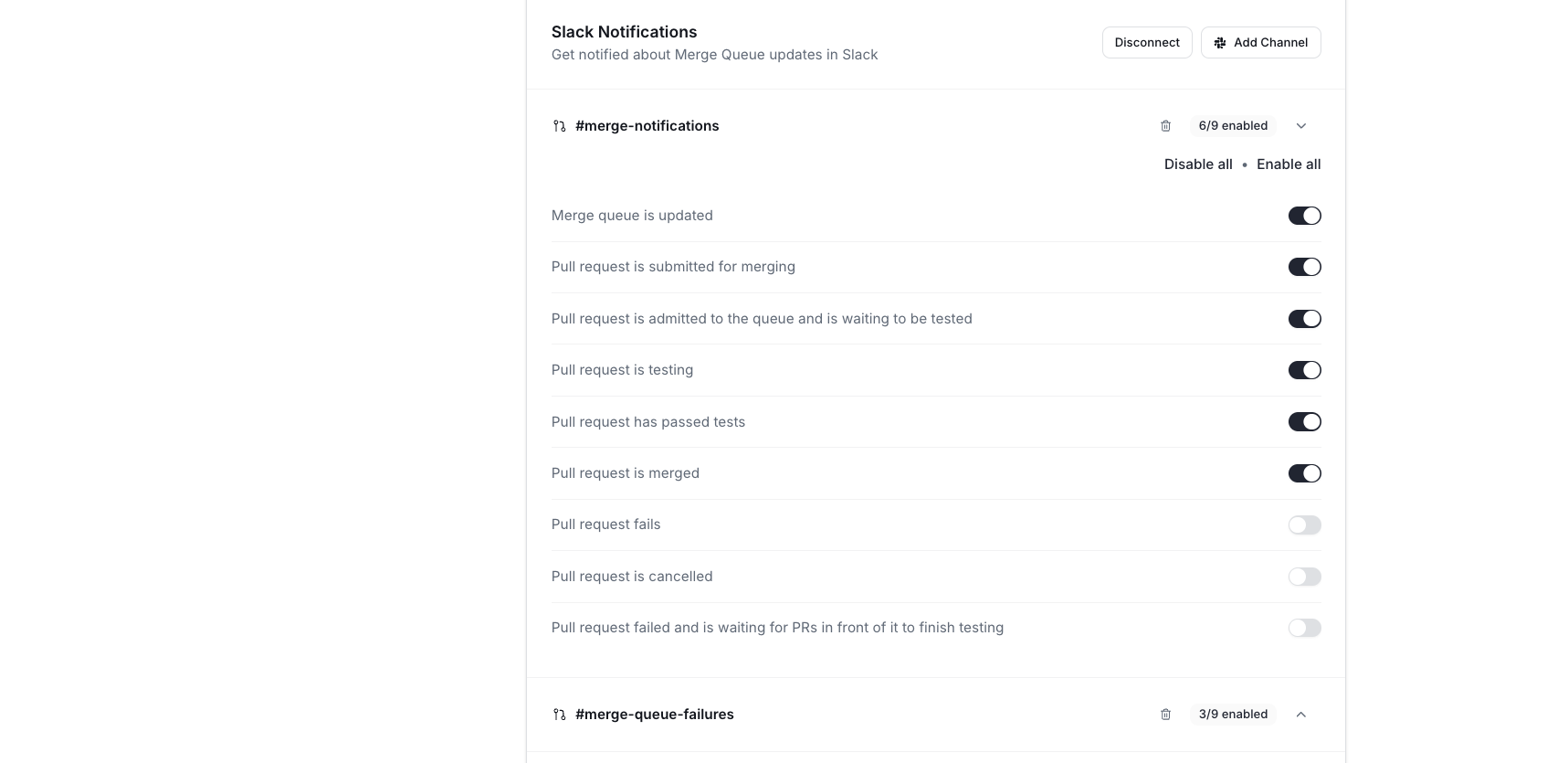
An example where all Merge Queue notifications go to one channel, and failures are routed to a dedicated channel for higher visibility.
Managing Channel Notification Preferences
Each connected channel has its own independent set of notification topics. You can expand any channel in the list to view and toggle its topics on or off. Changes take effect immediately. See Available Notification Topics below for descriptions of each notification type.Personal Slack Notifications
Get direct messages in Slack about your PRs as they move through the merge queue — queued, testing, merged, failed, and more — without adding noise to team channels.Setting up Personal Notifications
Prerequisite: The Trunk Slack app must be installed for your organization before personal notifications can be configured. If the app hasn’t been installed yet, the Home tab will display a warning directing a Slack admin to complete the installation.
- Open the Trunk app in Slack. If you don’t see it in your sidebar, add it via Apps → Manage → Browse Apps and search for “Trunk.”
- Open the Home tab.
- Click Link Account to connect your Trunk account to Slack.
- Connect your GitHub account from the Home tab. This is required for PR tracking and most notifications.
- Configure your notification preferences using the toggles on the Home tab.
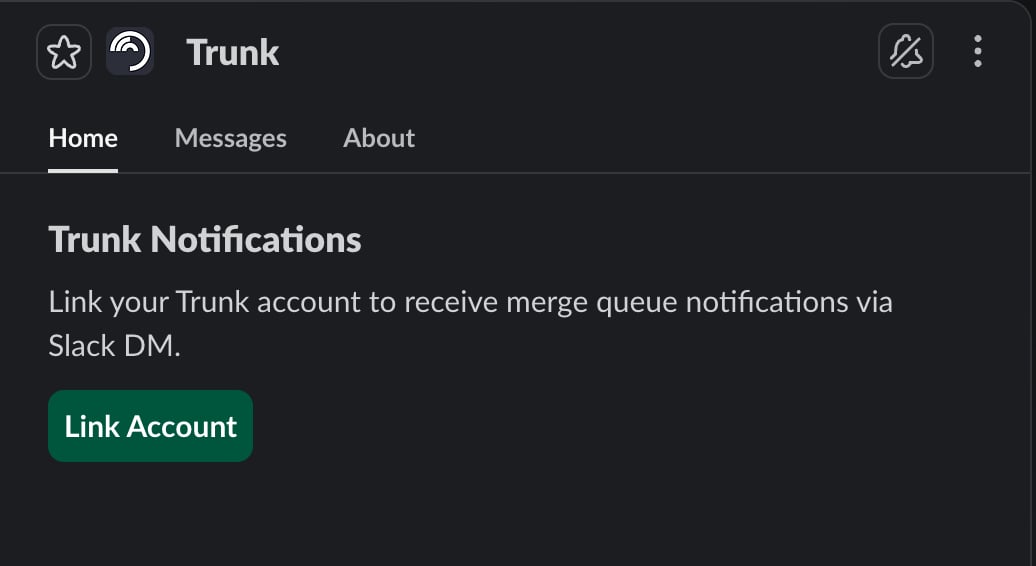
Using the Trunk Web UI
You can also start setup from the Trunk web app, which will redirect you to Slack to complete the process:- Navigate to Settings → Account → Notifications in Trunk.
- Under Connect your Slack workspace, verify your workspace is connected. If not, click Go to Slack settings to install the app first.
- Click Open in Slack to jump to the Trunk app’s Home tab, where you’ll link your account and configure notifications.
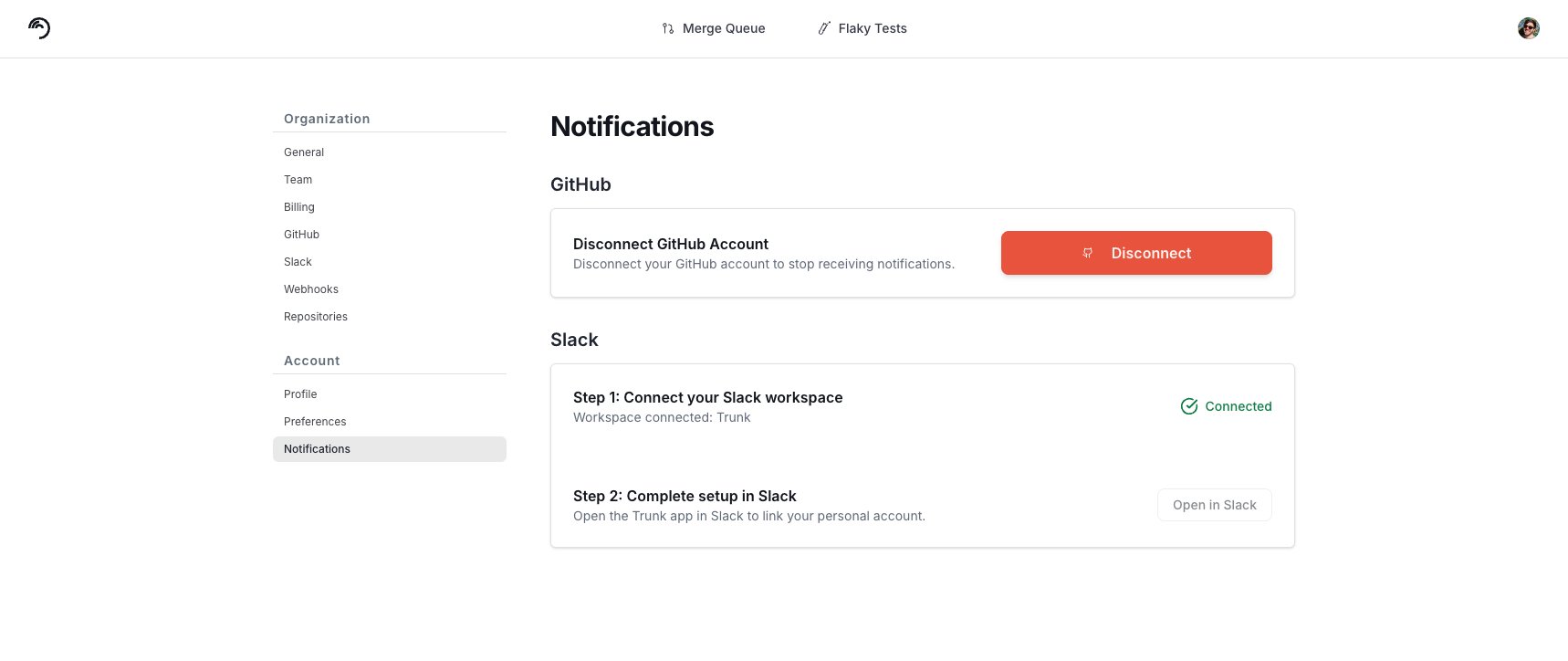
Slack App Home Dashboard
The Trunk Slack app’s Home tab provides a personal merge queue dashboard directly in Slack. Open the Trunk app in Slack and click the Home tab to see an overview of your merge queue activity across all repositories.What You’ll See
The Home tab displays the following sections:- Refresh — A button at the top of the Home tab to update the view with the latest queue data, along with a “Last refreshed” timestamp.
- Account connection status — Shows your connected identity (e.g., “Connected as Your Name”), an Unlink Account button, and your GitHub account connection status. You can connect your GitHub account directly from the Home tab if it isn’t linked yet.
- Not Ready — PRs you’ve submitted that are waiting for prerequisites (e.g., GitHub mergeability) before entering the queue.
- PRs in Queue — Your PRs that are currently in the queue, with real-time status indicators (e.g., “Testing”).
- Recently Merged PRs — Your most recently merged PRs, with merge dates.
- Failed PRs — Your PRs that failed in the queue.
- Notification Preferences — Toggle buttons for all notification topics. You can enable or disable individual notifications directly from Slack without visiting the web UI.
Linking Your Account
To use the Home tab, you need to link your Trunk and GitHub accounts. Follow the steps in Setting up Personal Notifications — the same account linking process powers both the dashboard and personal DMs.Managing Notification Preferences
You can toggle notification topics on or off directly from the Home tab — no need to visit the Trunk web UI. Changes take effect immediately. The available topics are the same as those listed in Available Notification Topics.Frequently Asked Questions
Do I need both GitHub and Slack connected to receive personal notifications?
Do I need both GitHub and Slack connected to receive personal notifications?
Yes, both connections are required. Link your Trunk account from the Slack app’s Home tab to establish the Slack connection, then connect your GitHub account from the same tab to link your PRs to your Trunk profile.
What's the difference between personal notifications and channel notifications?
What's the difference between personal notifications and channel notifications?
Personal notifications are sent directly to you via Slack DM and only include updates about your own PRs. They are set up from the Trunk Slack app’s Home tab.Channel notifications are sent to one or more shared team channels and include updates about all PRs in the merge queue. You can connect multiple channels per repository, each with different notification topics.You can use both simultaneously to stay informed personally while keeping your team updated.
Can I customize which notifications I receive?
Can I customize which notifications I receive?
Yes. For personal notifications, toggle topics on or off from the Trunk Slack app’s Home tab. For channel notifications, configure topics per channel under Merge Queue → [your repository] → Settings → Slack Notifications in the Trunk web app.
What happens if I disconnect my Slack account from my Trunk account?
What happens if I disconnect my Slack account from my Trunk account?
You can unlink your account from the Trunk Slack app’s Home tab using the Unlink Account button. Disconnecting stops personal Slack notifications. You can reconnect at any time by returning to the Home tab and clicking Link Account.
Available Notification Topics
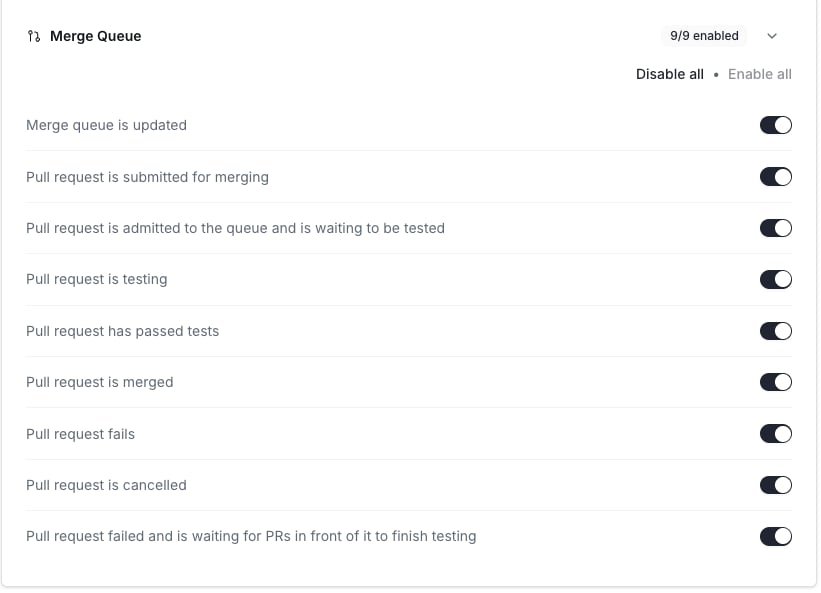
Both channel and personal Slack notifications support the same notification topics. You can customize which events trigger notifications for each channel or for your personal DMs.